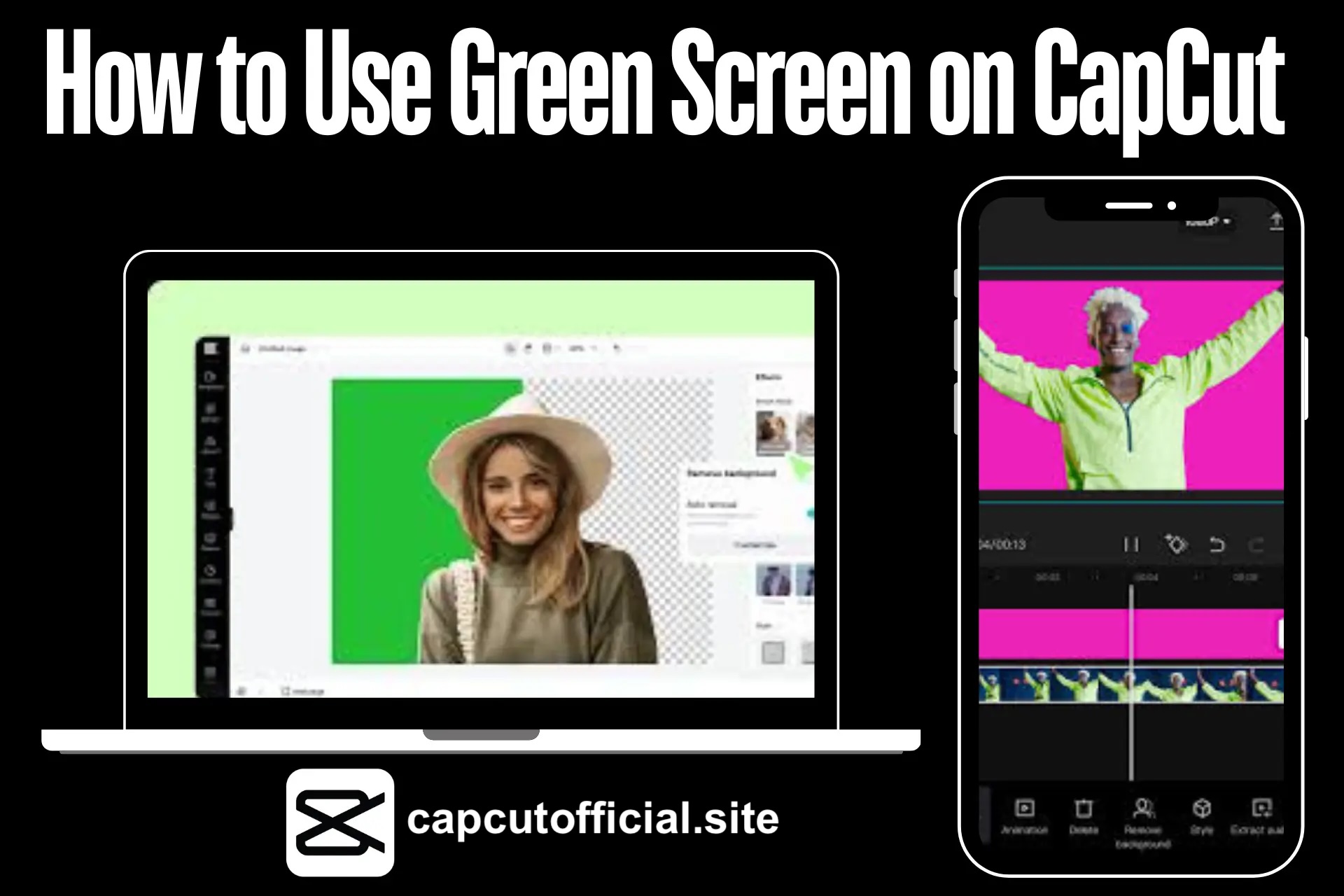
Nowadays, green screen video editing is trending on social media like TikTok. Green screen video editing in CapCut makes your video fantastic, and your visual content can keep up with the trends of content creators. In this article, I will explain two methods for using green screen on CapCut to remove a background.
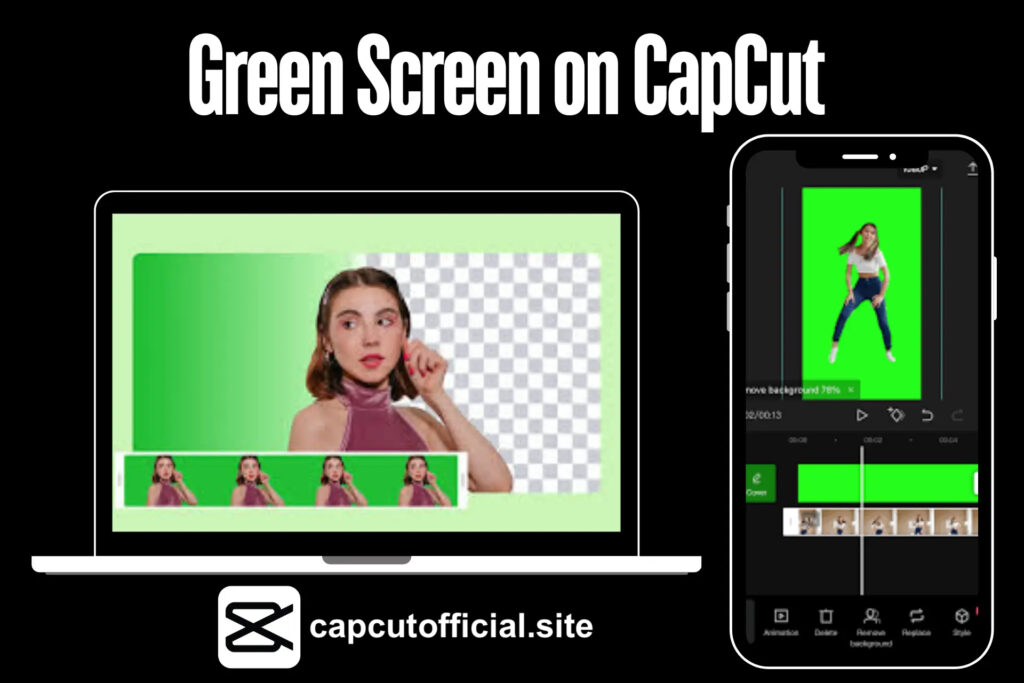
What is Green Screen Editing?
Green screen editing is a mind-blowing technique mostly used in movies and films. With this technique, you can easily change or remove the background of your video to your favorite background. You can also replace the background of your content with a green screen without any changes or destroying your video content. Green screen editing helps you stand in the world of mind-blowing visual content creation and surprises your audience with Caput’s incredible video editing features.
CapCut Green Screen Features
CapCut is an incredible green screen editing tool that offers users a fantastic video editing experience with many features. Here are the following features:
Easy Background Removal: one of the best features of the green screen is that you can remove the background with just one click and use your favorite background in your content.
No Watermarks: No watermarks because of this incredible feature of the compact green screen editing. Most users love the app. Watermark is a brand identity. If a watermark appears in editing, it can be a bad experience for our brand.
Versatile Editing Tools: CapCut green screen provides a vast range of simple and user-friendly advanced features like keyframing and speed adjustments.
How to Use Green Screen on CapCut
Here are two methods to add green screen editing to your video on CaputCaput:
Method 1: Green Screen Editing Using Chroma Key
Upload Your Clips: Open CapCut, create a new project, and upload the desired clip as a background.
Add Your Green Screen Video: Now, click on overlay, select the overlay video, and adjust it to the desired background.
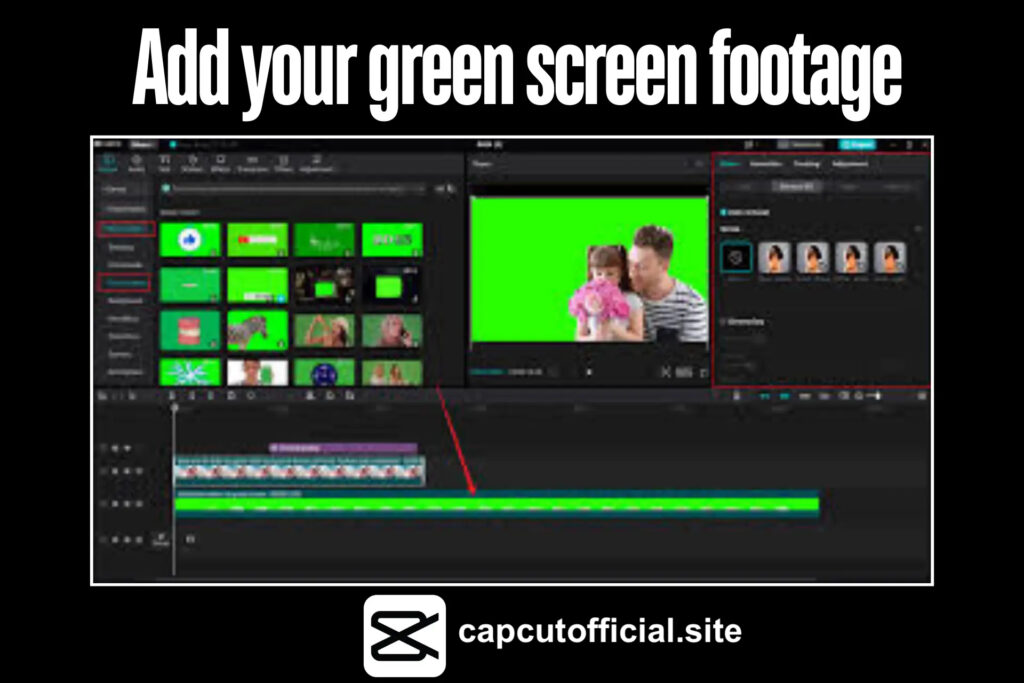
Select the Color to Remove: Tap the green screen video and click the “Chroma Key” option. Choose the color picker to select the green color that you want to remove in a second.
Adjust Intensity: Tap on the intensity slide bar in your control to adjust the clip’s intensity. You can also add and adjust the shadow.
Export Your Video: You desire the green screen editing video to be ready to export. You can export the video in high resolution, in the format you need.
Method 2: Green Screen Editing Using Background Remover
Start a New Project: Just like before, open the CapCut, start a new project and upload your background clips.
Add Your Green Screen Video: Use the overlay option to add your green screen footage to your visual content.
Remove Background: Click on the green screen video and press the background. Remove it automatically and remove the background of your video.
Make Final Edits and Export: When your editing is complete, you can export in different high-resolution formats and share them with your audience.
Tips for Successful Green Screen Editing on CapCut
Lighting Matters: Avoid using dark shadows to make your editing user-friendly and attract more audience.
Use Quality Clips: If you want quality final results, then use high-resolution clips in your content creation
Experiment with Backgrounds: Experiment with different backgrounds and check which background best suits your content.
Why Choose CapCut?
CapCut is a simple, easy-to-use video editing tool for beginners and advanced users. The app offers a vast range of tools that help you make outstanding visual content for your audience. The Chroma key and green screen video editing features of CapCut are incredible and trending in the world of content creation. If you want pro-level video editing, download CapCut MOD APK, which offers free pro features.
Conclusion
CapCut Green screen tool offers its users endless creative possibilities to grab audiences. The features of CapCut are easy to use for both new and experienced users. So download the CapCut and Dive into the world of video editing and transform your video editing experience to the next level using green screen video editing. Add green screen video in cap cut in your visual content and make engaging visual content for your audience.