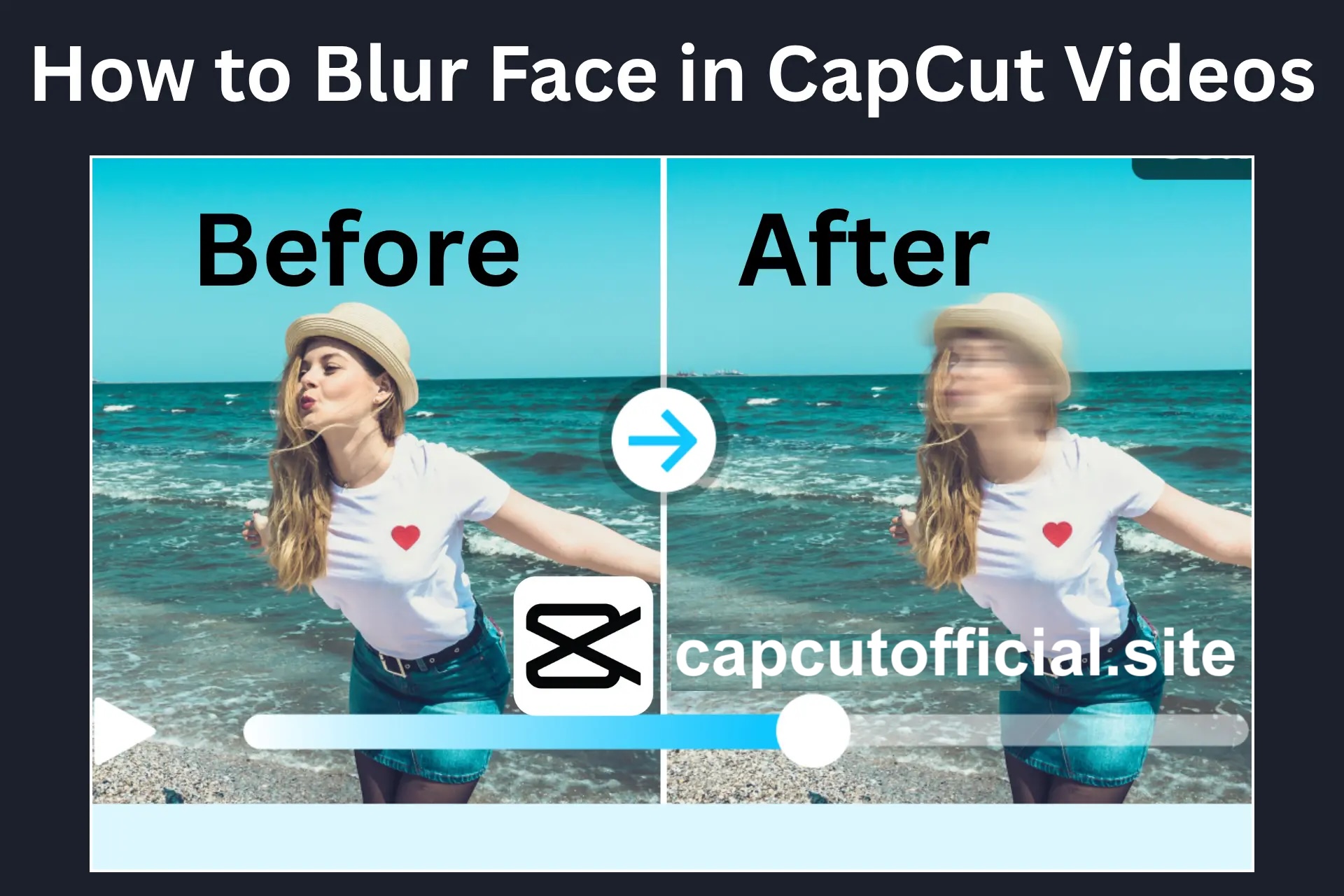
Sometimes, your videos capture faces that you prefer to keep private or hide from others. These can be the faces of strangers or any moments that you want to keep private. For these videos, blur face effect helps you to keep your videos clean and ready to share. The blur feature of CapCut has made it easy to blur any face and moment with simple and easy steps. Here, you will go through the detailed steps to blur any unwanted faces in your video.
Steps to Blur Face in CapCut
You can easily blur any face in a CapCut video with these quick steps:
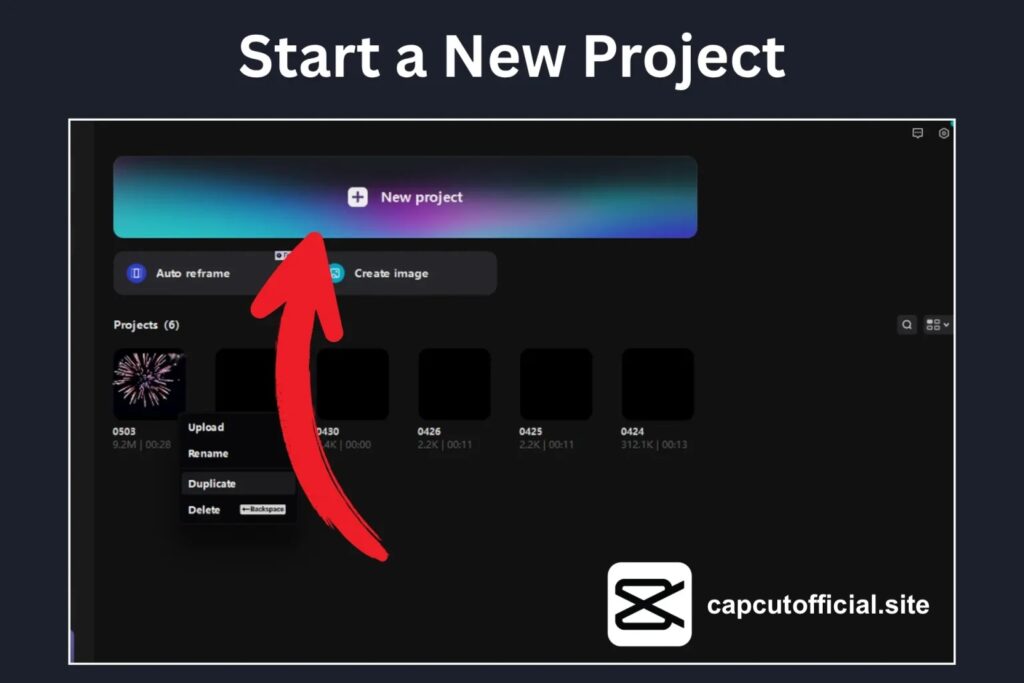
Start a New Project
Start blurring your face in a video by opening CapCut APK on your device. Start a New Project to begin. Choose the video and add it to the timeline.
Add Video to Timeline
The selected video will be shown on your timeline. You can trim or edit the video before applying the blur effect.
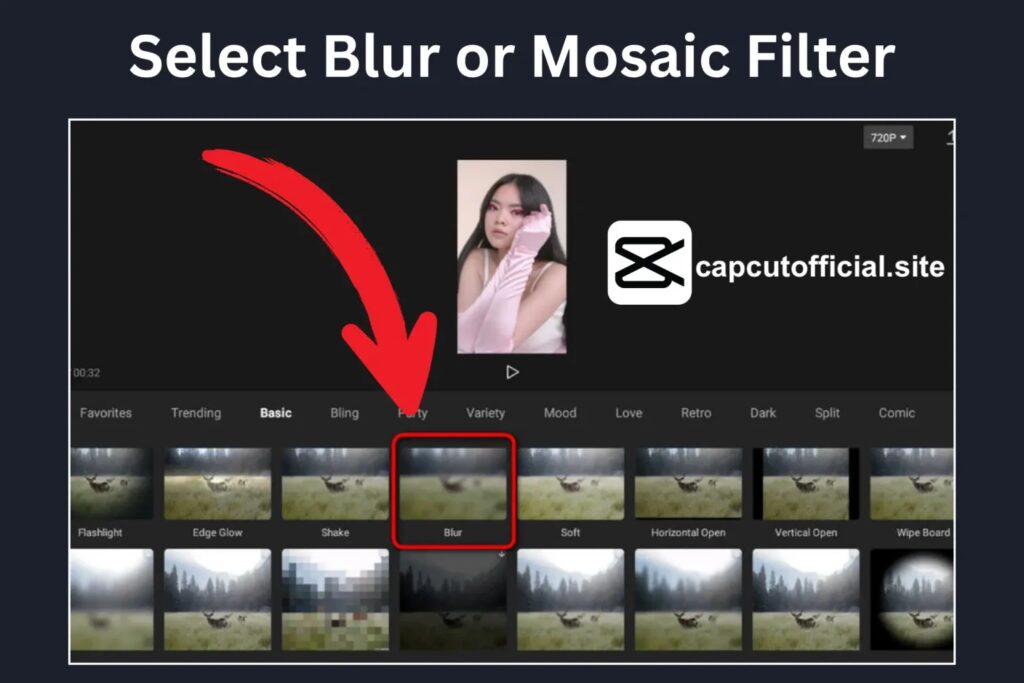
Select Blur or Mosaic Filter
From the Effects panel, choose Blur or Mosaic for a strong hide effect.
Apply the Effect
Apply the effects to your video. You can use the slider to adjust the strength of the blur effect.
Use Mask Tool
Select the Mask tool and choose a shape to cover the face.
Track the Face with Keyframes
You need to track the keyframes to hide the moving face in the video. To track the face with keyframes:
- Go to the starting point of the video clip.
- Add a keyframe with the mask placed on the face.
- Move to the next part of the video and set the position of the mask.
- Repeat until the mask follows the face throughout the clip.
Check Your Video
Play the video to have a final look. Make sure that the face is blurred completely in the whole video clip.
Export Video
Save your video by blurring the face in the video. You must export the video in good quality and resolution.
Common Methods to Blur Face in CapCut
Blur Effect
The blur effect of CapCut helps to hide the faces in your video clips. You can change how strong the blur looks. The effect helps you cover the face without hiding the rest of your video.
Mosaic Effect
This effect creates a pixel block over a face for privacy. You can move it over the face and change its size until it covers it well.
Stickers or Shapes
Stickers and shapes are another way to cover the face in CapCut videos. You can put a solid shape to hide the face in video clips.
Auto Face Mosaic
Some versions of CapCut have an auto face mosaic feature. It can detect faces in your video and blur them automatically.
Benefits of Blurring Face in CapCut
Blurring faces can help you in many different ways:
- Blurring faces helps you to keep your moments private in videos.
- You can hide the faces of people you do not want in your videos.
- It helps your viewers to keep focus on the main part of your video.
Conclusion
Blurring faces in CapCut videos is an easy way to keep your videos protected and private. You can use the CapCut blur effect to hide the unwanted faces in your videos. So, read the article and apply the steps carefully to hide unwanted faces from your video.
FAQs-Frequently Asked Questions
Can I blur more than one face in CapCut?
You can add separate masks for multiple faces in CapCut videos. It will help you to blur more than one face in CapCut.
Does CapCut have a feature to blur faces by itself in a video?
Some versions of CapCut allow you to apply the auto face mosaic feature.
Can I adjust the strength level of blur?
CapCut allows you to adjust the strength level of blur according to your requirements.